Whether you’re buying for the first time, reinstalling on a new device, or opening a link someone sent you, check the developer’s full name and app ID on the same App Store product page, then verify the white icon with its blue-and-purple outlined rocket. Similar names and icons don’t mean the apps are the same. If the developer or ID doesn’t match, don’t buy; return to this site’s download page and reopen the product page.
How to Identify the Genuine Shadowrocket App
In the App Store, open the product page from the search results before checking its details. Searching for “Shadowrocket” can help you find possible matches, but search ranking, abbreviated names on result cards, and screenshots someone sent you can’t confirm which listing you’ve opened.
- Developer: Check the full name
- On the product page, find the developer name near the app name and check that it reads Shadow Launch Technology Limited. Don’t rely on seeing only Shadow at the start, or mistake a name mentioned in the app description for the developer field. If the search result card doesn’t show the full name, open the product page to check.
- App ID: Check the product link path
- Copy the share link from the product page and look for
id932747118in the path. This identifies the App Store listing; it isn’t a client version or an order number. A similar product name in the link, or a number that appears only after a question mark, doesn’t substitute for the app ID in the path. - Official icon: Check the icon at the top of the product page
- Look for the rocket icon with a white background and blue-and-purple outline. Compare the product icon next to the app name, not promotional images in search results. Use the icon as a second check; even if it looks right, verify the developer and app ID too.
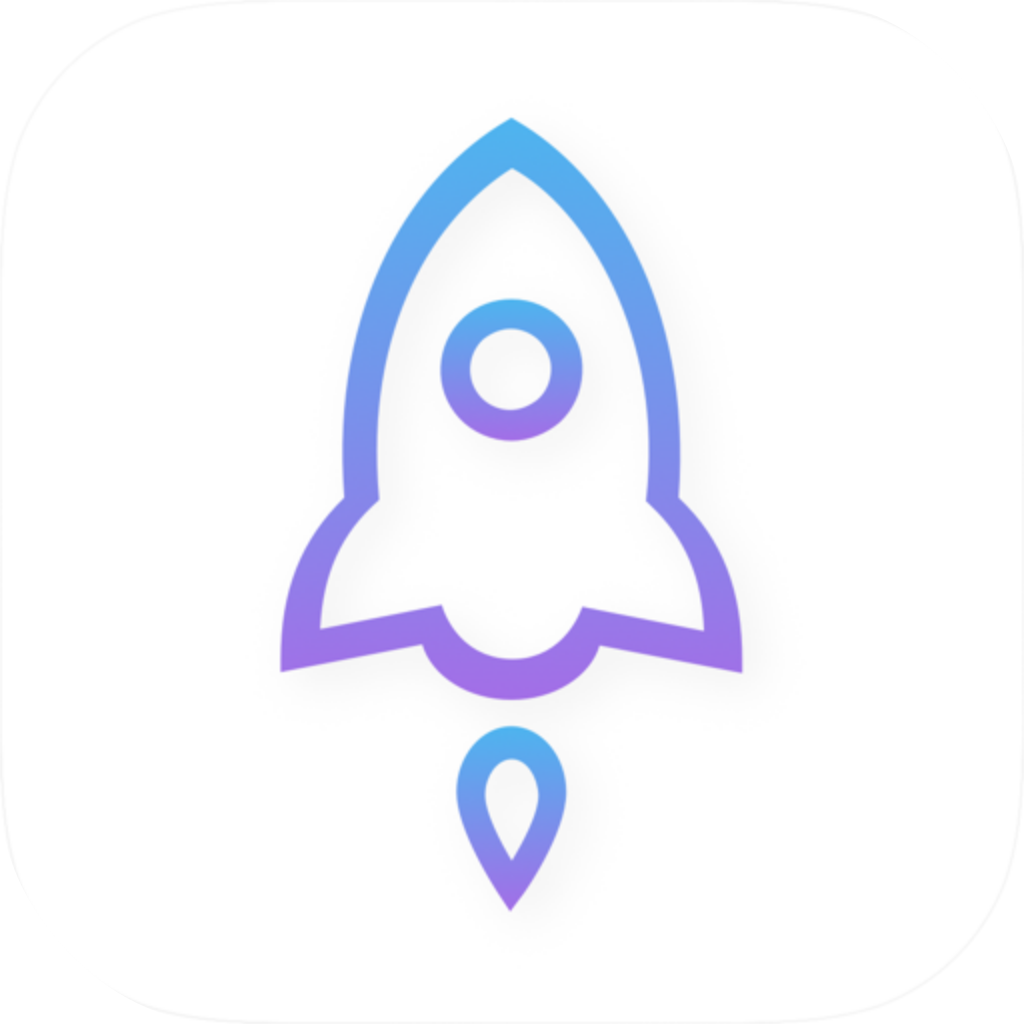
Verify the App Store listing on iPhone or iPad
Use these steps whether you arrived from search, opened a link in a message, or are looking for the app again on a new device. All three details must come from the same product page you actually opened—not from combining an app name from one place with a link from another.
Open the product page
Go to the iPhone / iPad App Store product page from this site’s download page. If you’ve already found a possible match in App Store Search, tap the app name to open its product page; don’t tap the purchase button in the results list first.
Check the developer
Find the developer near the app name on the product page and check each word of Shadow Launch Technology Limited. Also compare the app icon at the top of that same page with the official icon above.
Copy the product link
On the product page, tap the share button, then choose Copy Link from the system share menu. Paste the link into your notes to inspect it: the host should be
apps.apple.com, and the product path should contain a separateid932747118segment.Get the app after verification
Once everything checks out, continue from this product page. If anything doesn’t match or you can’t verify it, return to this site’s download page and reopen the listing. The iPhone / iPad version costs $2.99 as a one-time App Store purchase; see the App Store page for system requirements. The Mac (Apple silicon and Intel), Windows, Android, and Linux versions are free.
For example, the US product path linked from this site’s download page is
/us/app/shadowrocket/id932747118. In this path,usis the storefront region andshadowrocketis the app name;id932747118identifies the listing. A different region path doesn’t mean it’s a different app.
VPN permission and On Demand don’t prove an app is genuine
After downloading, you can review the connection settings. A system prompt to add a VPN configuration only means the app is requesting system permission; it doesn’t identify the App Store listing. If you haven’t verified where the app came from, cancel the prompt. Don’t enter provider credentials or import your own subscription yet. First verify the product page, then decide whether to connect.
After confirming the app is Shadowrocket, go to Settings → On Demand to check whether on-demand connections are enabled. The two options below control when a connection starts; they don’t tell you whether the app is genuine.
Turn off On Demand
RecommendedWhen setting up for the first time, don’t rely on on-demand triggers. Once your own configuration is ready, return to Home and start the connection manually. Then check its status to distinguish manual connections from automatic triggers.
Best for: Testing a manual connection after installation or troubleshooting what triggers a connection.
Turn on On Demand
After confirming that a manual connection works, set on-demand conditions to suit your needs. Test whether the connection starts under the conditions you configured; one successful automatic connection doesn’t mean it will work under other network conditions.
Best for: Automatically connecting under specific conditions after basic setup.
Already installed an app with the same name? How to check where it came from
Don’t try to identify the App Store listing from the home screen name. It shows only the app name and icon; the developer and app ID you need are on the product page and in its link. Don’t use an in-app payment prompt to verify the source, either: app purchase records and bills for personal network services are separate.
- First, identify the app you installed. Open Purchase History from your App Store account page and check the app name and transaction details. If you can open the corresponding product page, verify the developer and link ID as well. If you can’t find the purchase, first make sure you’re checking the account used at the time; a missing record alone doesn’t prove you bought the wrong app.
- If you can’t identify the app, stop using it for now. Disconnect any active VPN and don’t paste configurations into the app. If you decide to delete it, check for VPN entries in system Settings → General → VPN & Device Management. Remove only entries you can confirm belong to that app, and keep any configurations you still need for work, school, or other purposes.
- Handle any information you entered separately. Deleting the app won’t revoke provider credentials you’ve already entered. If you gave an account password or a subscription URL containing an access token to an app whose source you couldn’t verify, change your password with the original service provider, or revoke and regenerate the URL if the provider supports it. If you bought the wrong listing, keep the order details and handle the transaction through Apple’s purchase records.
Common questions about duplicate apps and download links
The link doesn’t show the full URL. How can I check the ID?
Share the link again from the App Store product page that’s already open, choose Copy Link, and inspect the copied link. Don’t look for the ID in a message title, shortened link, or preview card; check the product path in the final link.
The icon looks similar, but the developer is different. Is it safe to buy?
Don’t proceed. Return to this site’s download page, reopen the App Store product page, and check the full developer name and id932747118. A similar rocket image explains why it’s easy to tap the wrong listing; it doesn’t replace the listing ID.
Do I need this app ID for Mac or Android too?
No. 932747118 identifies the iPhone / iPad App Store listing. Get the Mac, Windows, Android, and Linux installers from this site’s download page. Before downloading for Mac, check About This Mac to see whether it has Apple silicon or an Intel processor, then choose the matching option.
Why do I need my own configuration after verifying the app?
Verifying the app tells you which client you installed; it doesn’t mean your device has a network service ready to use. If you want to connect, use a configuration from a provider you already have and follow the quick-start guide. This site does not provide, sell, or recommend proxy nodes or subscriptions.
Shadowrocket Download and Quick Start
Get the iPhone / iPad version from the App Store for a one-time payment of $2.99. See the App Store page for system requirements. The Mac (Apple silicon and Intel), Windows, Android, and Linux versions are free; download their installers from this site’s download page.