Add Server or Subscribe
Use Add Server to enter your existing server details, or Subscribe to import your subscription URL. Return to Home, expand the SERVER group, and select one entry to test. If names are similar, verify the protocol and address.
Official Manual · All Platforms
Shadowrocket is a cross-platform proxy client with traffic rules. The iPhone / iPad app costs $2.99 as a one-time App Store purchase; versions for Mac, Windows, Android, and Linux are free.
Current version v2.2.92 · Free for Mac, Windows, Android, and Linux
First connection: Quick start →
[Rule] sectionRules are evaluated from top to bottom; the first match takes effect.
DOMAIN-SUFFIX,example.com,PROXY
DOMAIN-KEYWORD,example,PROXY
IP-CIDR,192.168.0.0/16,DIRECT
FINAL,DIRECTFirst identify whether you need to change the connection method, server details, or matching rules, then open the corresponding screen. The connection toggle, selected server, and active configuration each serve a different purpose; keep them separate when troubleshooting.
To route traffic using the active configuration’s rules, select Config under Global Routing on Home. Proxy forwards traffic through the selected server; Direct connects without a proxy. Use them to compare results. When editing rules, place exceptions for individual domains before broader rules, then use FINAL for requests with no match. If a domain is not being proxied as expected, find the first rule it matches and check the policy assigned to that rule.
DOMAIN-SUFFIX,example.com,PROXYOn Demand starts a connection when specified conditions are met; Global Routing determines how requests are routed. These are separate settings. First, test a connection manually from Home, then check On Demand in Settings. Switch to the network you intend to use and observe the connection state. If an unexpected reconnect occurs only when changing networks, pause On Demand, retest the same server, and check each trigger condition.
Settings → On DemandShadowrocket supports protocols including Shadowsocks, VMess, VLESS, Trojan, WireGuard, and Hysteria2. To add a server manually, select the matching Type under Add Server using your existing server details, then enter Host, Port, and the fields required by that protocol. Authentication details are not interchangeable between protocols. Even if two sets of details use the same address, check their ports and authentication methods separately. If fields are missing after import, verify them against the original details rather than copying settings from another entry.
Add Server → Type / Host / PortA subscription URL retrieves a server list that can be updated; a single share link usually describes one server. To use an existing subscription, first make sure you copied the complete URL, then import it with Subscribe. On Home, check the server group and entries. A successful refresh means the list was retrieved, not that every server can connect. Next, test a known working entry on its own. Subscriptions may contain access credentials, so hide the full URL before sharing screenshots or troubleshooting details.
Subscribe → Home → SERVERIn Config, check which file is currently selected. General contains common settings, Rule defines policies for requests, Hosts maps hostnames, and URL Rewrite handles requests that meet specified conditions. Keep a working copy before making changes, and edit one section at a time so you can verify each change. If iCloud sync is enabled, check the file contents and selected file after switching devices: seeing a file in the list does not mean the client has switched to it.
[Rule]
DOMAIN,example.com,DIRECT
FINAL,PROXYUse Connectivity Test on Home to check the selected server, Data to view traffic statistics, and Diagnostics in Settings to find diagnostic tools. Note the network, server, and Global Routing mode, then reproduce the issue with the same test destination. A failed test may be caused by the current network or test destination; one result alone does not prove that a subscription is invalid. If traffic statistics change but a page still will not load, check the app request, rule match, and destination response separately.
Home → Connectivity Test
Settings → DiagnosticsHave your own server details or subscription ready. For the first test, keep your existing configuration and use one server with a familiar destination. Adjust rules only after confirming the connection works.
Use Add Server to enter your existing server details, or Subscribe to import your subscription URL. Return to Home, expand the SERVER group, and select one entry to test. If names are similar, verify the protocol and address.
Use Config to apply your rules. For comparison, use Proxy to test the selected server or Direct to test the network itself. Keep the network and destination the same, then restore your usual mode.
Turn on the connection in Home and approve any first-time system prompts. Run Connectivity Test, then open a familiar site in your browser. The toggle alone does not tell you whether a request was routed as expected.
A successful import only confirms that the client can read the details. Check the selected entry’s Host, Port, and authentication fields first. Then follow the quick start test sequence to distinguish a server connection failure from a rule mismatch or an unreachable test destination.
Proxy forwards traffic through the selected server and does not evaluate rules one by one as Config does. Switch back to Config and make sure the expected configuration file is selected. If the result is still unexpected, check whether a broader rule appears earlier in the list.
First confirm that the new network works, then retest with the same server and destination. If only the connection timing has changed, check On Demand in Settings. If just one destination will not load, check the routing rule for that request first.
Get Shadowrocket for iPhone / iPad from the App Store for a one-time US App Store price of $2.99. Mac, Windows, Android, and Linux versions are free, with installers available from this site at /dl/. Confirm your device and system, then choose a file in the matching section.
If you are unsure which architecture your computer uses, check the system information before downloading. If a desktop or Android device asks you to confirm the installation source, make sure the file came from this site’s page for the correct platform, then read the installation instructions for your system. There is no need to disable your system’s global protections to install an app.
Shadowrocket is a closed-source commercial app. Store searches may show listings with similar names. Before paying, verify the developer, icon, and app ID together on the product page; do not rely on the name or search ranking alone.
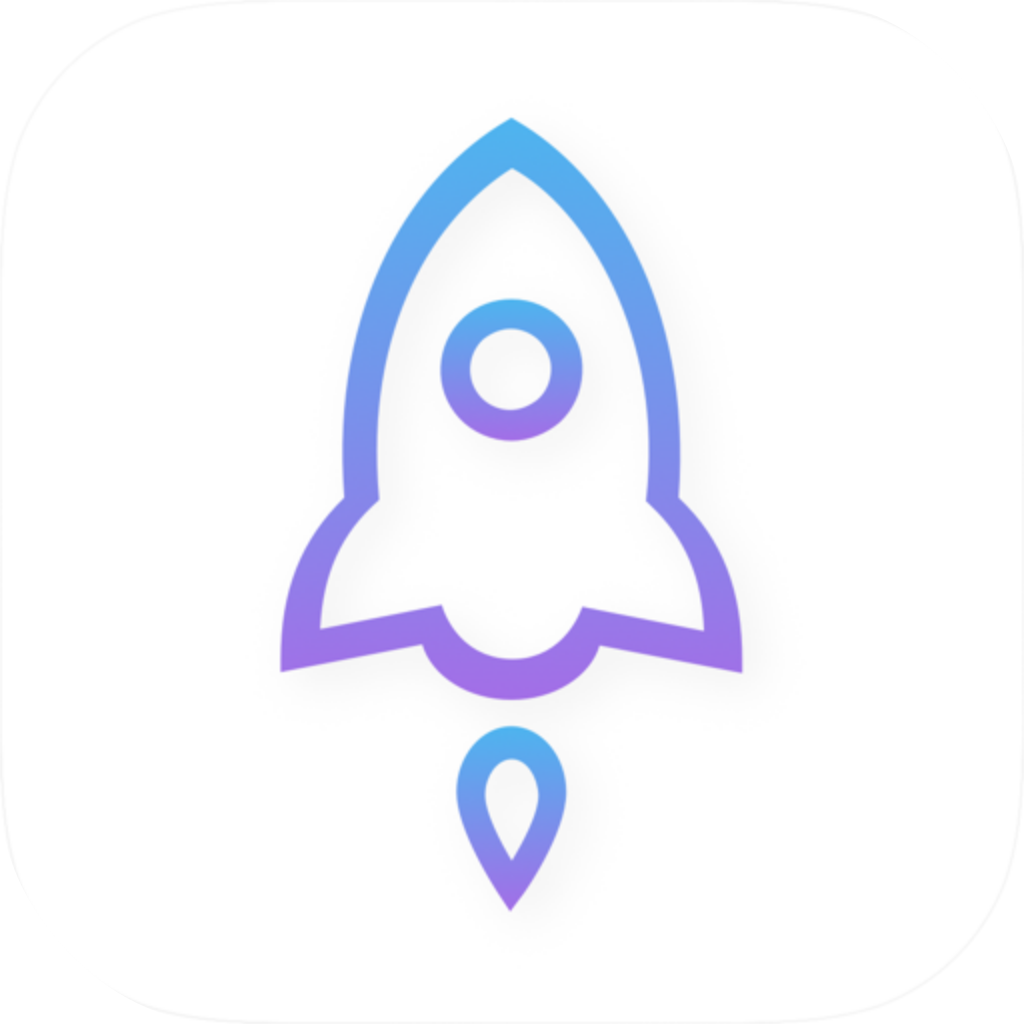
932747118First, confirm the product name is Shadowrocket, then check that the developer is Shadow Launch Technology Limited. Compare the product icon with the image on this page, and make sure the product page URL ends in id932747118. If any of the three details do not match, return to the download page and reopen the product page before making a purchase.
Your device’s language and your store account’s region are separate settings. If you cannot find the app, check the current store region, then open the product link from the download page to see its availability in that storefront; changing your search terms will not change the store catalog. If the product page opens but installation is unavailable, check its compatibility information. For iPhone / iPad, refer to the App Store listing for system requirements.
The iPhone / iPad app is a one-time US App Store purchase for $2.99. If both devices meet the compatibility requirements, the app can be used on both with the same purchase account. Mac, Windows, Android, and Linux versions are free. When changing devices or reinstalling, first check your purchases using the original account, then investigate account or region settings if needed. Purchase history helps you find the app again; it does not replace backups of server details or configuration files.
Update the iPhone / iPad app through the App Store. Mac, Windows, Android, and Linux users can download the installer for their platform again from this site’s download page. Before changing devices, note the configuration and custom rules you use. If traffic to a destination behaves differently after an update, check the selected server, configuration, and Global Routing mode before changing rules.
A one-time app purchase is not a service plan. The purchase covers use of the app, not servers or subscriptions. This official website and manual do not provide, sell, or recommend servers or subscriptions. Import server details you already have or a subscription from your own provider. Protect your credentials when making backups or sharing troubleshooting information.
Browse by issue: learn the difference between share links and subscriptions, verify lookalike apps, or find settings by their interface labels.
A single share link describes one server, while a subscription link provides an updatable server list. Compare common link formats to find the right way to import your details.
If you find listings with similar names in the App Store, verify the developer, official icon, and app ID one by one before opening the purchase page.
Find common interface labels by screen and purpose, and learn how to tell connection modes, configuration files, traffic records, and settings apart.